Diese Woche meine Schwerigkeit war ein bisschen dumb. Alle war meine fehler, aber ich noch eimal trage die selbe aktion. Zwei trage suche ich eine solution weil wasser uber meine Komputer hat gefallt.
Am ende, putze ich alle meine Keyboard mit alkohol. Alles gut...
(muss ich Deutsch lernen? Ja! Ich habe vergessen am meinstens!
Sunday, February 20, 2011

Liquid, water, tea spill on a laptop Keyboard - solution !
If you have spilled water on your laptop keyboard, here is a simple way to get it sorted out. You will need a couple tools :
Screwdrivers to be able to remove your keyboard
Isopropyl alcohol 50 % to 70% Isopropyl alcohol
Lamp
Time and patience
1. Turn off computer by holding down the power button until it shuts off.( I am sure you are have already done so if you are reading this...)
2. Place paper towel on keyboard. Close lid. Remove power cable and battery.
3. leave upside down for a little while. The liquid will thus not flow into the computer.
4. See what can flow out had flowed out.
5. If required, consult manual to remove keyboard.
6. Remove keyboard, wash it under the tap.
7. Let excess water drip out by tilting on angles. Shaking may also work.
8. Pour enough Isopropyl alcohol to make the whole keyboard wet.
9. Allow to flow into the keyboard for few minutes, then shake, tilt the keyboard to remove the excess alcohol.
10. A lamp is used to generate head and make the keyboard dry. Make key side face the table and thus the back with aluminum face up. Allow to rest like such for 10-12 hours. (I used a 50W Halogen bulb at about 15cm away.
11. If possible, remove the caps of a few keys to see if the rubber dome does not have liquid inside. If so allow to dry further.
12. Once reasonably dry, put back in laptop and test. You may want to not put all the screws back until it is working. Wait a few more days before ordering a new keyboard if the above instructions did no work.
Screwdrivers to be able to remove your keyboard
Isopropyl alcohol 50 % to 70% Isopropyl alcohol
Lamp
Time and patience
1. Turn off computer by holding down the power button until it shuts off.( I am sure you are have already done so if you are reading this...)
2. Place paper towel on keyboard. Close lid. Remove power cable and battery.
3. leave upside down for a little while. The liquid will thus not flow into the computer.
4. See what can flow out had flowed out.
5. If required, consult manual to remove keyboard.
6. Remove keyboard, wash it under the tap.
7. Let excess water drip out by tilting on angles. Shaking may also work.
8. Pour enough Isopropyl alcohol to make the whole keyboard wet.
9. Allow to flow into the keyboard for few minutes, then shake, tilt the keyboard to remove the excess alcohol.
10. A lamp is used to generate head and make the keyboard dry. Make key side face the table and thus the back with aluminum face up. Allow to rest like such for 10-12 hours. (I used a 50W Halogen bulb at about 15cm away.
11. If possible, remove the caps of a few keys to see if the rubber dome does not have liquid inside. If so allow to dry further.
12. Once reasonably dry, put back in laptop and test. You may want to not put all the screws back until it is working. Wait a few more days before ordering a new keyboard if the above instructions did no work.
Tuesday, February 15, 2011
Drive space is overrated
I welcome SSDs - not only because they are quiet, but also because they consume less power.
What is the logic behind computers? Is
What most people like to have on a hard drive :
Office Suite
Specialized program ( AutoCAD, AvidExpress, Photoshop/GIMP, Nvivo, Cakewalk/Sonar, etc.)
Skype
and a few others.
Really most of this will almost always fit well in 32-64GB hard drive.
I hate wasting my time managing drive space, but now external hard drives are so cheap, that the "storage" function can be altogether eliminated from the main part of the computer.
What is the logic behind computers? Is
- faster is better,
- more space is better
- cooler is better ?
Specialized program ( AutoCAD, AvidExpress, Photoshop/GIMP, Nvivo, Cakewalk/Sonar, etc.)
Skype
and a few others.
Really most of this will almost always fit well in 32-64GB hard drive.
I hate wasting my time managing drive space, but now external hard drives are so cheap, that the "storage" function can be altogether eliminated from the main part of the computer.
Saturday, February 12, 2011
Beater Laptop
Ok, if you want to play 1080p on it, you must make sure that the screen can acutally support it. If it is a beater laptop, you must think that the machine will be carried around, but when you actually have to work with it, the keyboard will not be too small nor the screen too restrictive.
As a cyclist weight is my concern, so is size, but getting a secondhand laptop I would opt for one that has a) high screen b) trackpoint c) easy enough to find parts.
The options may seem limitless, but I think that one is best to look at Thinkpads, Dell Business ( Precision ) some HPs.
Unfortunately, the trackpoint is not the same from one system to another. In fact the Dell trackpoint does not have a middle button, so no scroll or tab close in your browser. The middle button can be emulated via the touchpad using both buttons!
As a cyclist weight is my concern, so is size, but getting a secondhand laptop I would opt for one that has a) high screen b) trackpoint c) easy enough to find parts.
The options may seem limitless, but I think that one is best to look at Thinkpads, Dell Business ( Precision ) some HPs.
Unfortunately, the trackpoint is not the same from one system to another. In fact the Dell trackpoint does not have a middle button, so no scroll or tab close in your browser. The middle button can be emulated via the touchpad using both buttons!
Sunday, January 16, 2011
Logitech mk300 - bad - bad mouse …… 有辦法!

Whether I needed or not a keyboard is a whole other question, but there are some things for which a mouse is indispensable. I often feel that I cannot live without the trackpoint, but the proximity to the screen using the laptop normally is maybe a little too much!
Nevertheless, I find that the time that I was spending looking around for alternatives to locally available (and expensive) Bluetooth mouse, was ridiculous, so I went out and got the Logitech MK300 keyboard and mouse. The 1200 dpi is was what got my attention.
(Sorry for the distraction, but am I writing on the Thinkpad T61p keyboard which is still much better than the Logitech! A little louder, but the response and the key height is more comfortable.)
As for the mouse there were a few things that I did not like :
click on the wheel
bounce in the air feeling of the buttons
Noise problem
1. Open the mouse by pulling off the cover which faces you to access the batteries.
2. Remove the batteries
3. Use a screw driver to remove the screw clearly visible
4. Pull the cover up and towards you.
5. Apply a small piece of foam or felt in the areas shown above.
Click of the wheel
The wheel will never have the weight or inertia of higher end models, but removing the click is still an improvement.
1. On the button cover, look for a screw in the centre ( located underneath, really towards the centre of the mouse )
2. Once the wheel mount is separated from the button fixture, the wheel can be pushed out of the sockets.
3. Remove the spring.
4. Reassemble.
Had I something around, a lining weight would have been nice, but I am not sure how that it would affect the sensors. A slight interference would maybe make the wheel unusable.
Regarding the MK300 keyboard, I would also change the Fn key which replaces the context menu, given I make a lot of errors, so now I have to hit two keys when correcting typos. )
Monday, January 3, 2011
Turning the BCK-08 into a remote audio receiver
Last year I was one of the many who thought that using Bluetooth is a symbol of consumer success. I am not sure if there is such a thing, but getting a wireless link with my phone was a “thrill”, ok just a waste of time.
Nevertheless, there is a way that the stereo Bluetooth receiver can be used with Windows 7 as an inexpensive wireless speaker system. A dongle goes for about a dollar, and the BCK-08 Bluetooth Stereo headset costs about 10$. I had the other parts lying around, so it felt good to get them out the way!
Here is the data sheet. http://wenku.baidu.com/view/f49978afdd3383c4bb4cd2f8.html
Unfortunately, my technical Chinese is quite limited. I don't think I ever spoke about electronics other than LEDs when living in Taiwan. English one here (a little more recent).
You may want to investigate a little further about the ISSC iS1621N Stereo bluetooth IC. I wonder how the engineers and others who develop these technologies feel. Making a very inexpensive product is not bad, but it sure must not feel like you are designing a Maserati or Porsche!
Here are some instructions to make use of your bluetooth headset :
Parts
a) Bluetooth dongle
b) Bluetooth headset
c) 5V DC power supply (100mA is more than enough, but any adapter will do) – a cell phone charger will be fine.
d) 1 or 2 diodes or NPN or PNP transistors ( I could not find diodes) (average .7V drop per diode)
e) 100µF capacitor 6V
Instructions
1. Using a multi-tester, determine the polarity of the power supply. You will also find out what the voltage. Mine was 5.2V so I needed 2 diodes to bring it close to 3.7 as possible.

2. Put the diodes in series to and solder to one end of the power supply lead.
3. Plug in the power supply. Measure the voltage. It should be between 3.7V and 4.3V. If it is too low, you will get low power warning from the BCK-08. If it is too high, you may damage it. I assume however that there is some tolerance up to 5.1V as it uses a USB as a charge source and a voltage regulator on board. You can then put the capacitor across the leads to ensure that the device will have avoid having dips in power or any noise.
4. Unplug the Power supply. It will look better if you put the diode and capacitor in the power supply/AC adapter if there is room. Appearance is a very important part of the functionality of a device.
5. Use shrink tubing on the diode and power supply leads.
6. Open the BCK-08 by removing the white stickers.

7. Remove the battery, and connect the power supply leads to the terminals of the battery.
8. Plug in power supply and verify that the BCK-08 turns on.
9. Test the BCK-08 with your computer, phone, MP3 Player or whatever uses Bluetooth.

10. Setup speakers with BCK-08 up to 10 meters away.
I found that the Intel Bluetooth in my Thinkpad worked much better than a dongle. A full length straight antenna is probably the reason which explains better performance.
Nevertheless, there is a way that the stereo Bluetooth receiver can be used with Windows 7 as an inexpensive wireless speaker system. A dongle goes for about a dollar, and the BCK-08 Bluetooth Stereo headset costs about 10$. I had the other parts lying around, so it felt good to get them out the way!
Here is the data sheet. http://wenku.baidu.com/view/f49978afdd3383c4bb4cd2f8.html
Unfortunately, my technical Chinese is quite limited. I don't think I ever spoke about electronics other than LEDs when living in Taiwan. English one here (a little more recent).
You may want to investigate a little further about the ISSC iS1621N Stereo bluetooth IC. I wonder how the engineers and others who develop these technologies feel. Making a very inexpensive product is not bad, but it sure must not feel like you are designing a Maserati or Porsche!
Here are some instructions to make use of your bluetooth headset :
Parts
a) Bluetooth dongle
b) Bluetooth headset
c) 5V DC power supply (100mA is more than enough, but any adapter will do) – a cell phone charger will be fine.
d) 1 or 2 diodes or NPN or PNP transistors ( I could not find diodes) (average .7V drop per diode)
e) 100µF capacitor 6V
Instructions
1. Using a multi-tester, determine the polarity of the power supply. You will also find out what the voltage. Mine was 5.2V so I needed 2 diodes to bring it close to 3.7 as possible.

2. Put the diodes in series to and solder to one end of the power supply lead.
3. Plug in the power supply. Measure the voltage. It should be between 3.7V and 4.3V. If it is too low, you will get low power warning from the BCK-08. If it is too high, you may damage it. I assume however that there is some tolerance up to 5.1V as it uses a USB as a charge source and a voltage regulator on board. You can then put the capacitor across the leads to ensure that the device will have avoid having dips in power or any noise.
4. Unplug the Power supply. It will look better if you put the diode and capacitor in the power supply/AC adapter if there is room. Appearance is a very important part of the functionality of a device.
5. Use shrink tubing on the diode and power supply leads.
6. Open the BCK-08 by removing the white stickers.

7. Remove the battery, and connect the power supply leads to the terminals of the battery.
8. Plug in power supply and verify that the BCK-08 turns on.
9. Test the BCK-08 with your computer, phone, MP3 Player or whatever uses Bluetooth.
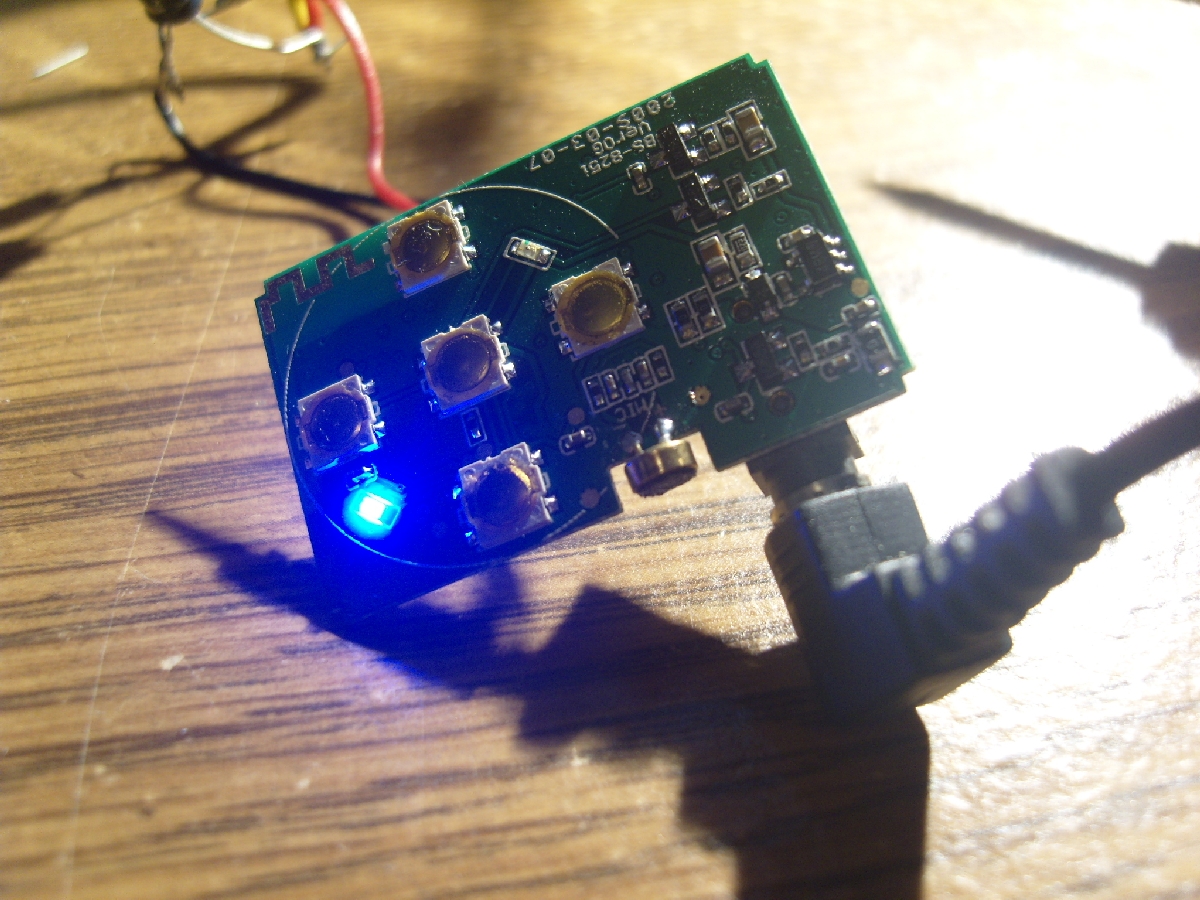
10. Setup speakers with BCK-08 up to 10 meters away.
I found that the Intel Bluetooth in my Thinkpad worked much better than a dongle. A full length straight antenna is probably the reason which explains better performance.
Sunday, January 2, 2011
Annoyance using Logitech Access Keyboard with F-Lock - Default ON solution
I still really like my old Access Keyboard. I must have written hundreds of pages on it, but the F-Lock function has been quite a pain to deal with. I found a simple solution. Mine is PS/2, but it should probably work with the USB version.
1. Turn your computer off .
2. Hold the F-Lock button.
3. Boot up your computer.
If the state changes, that is the LED lights up, you can guess what needs to be done.I stuffed a piece of paper in the edges of the button and put a pieces of tape over it to disable the button permanently.
4. Enter windows, uninstall the Logitech Access software ( memory usage, slower boot etc.)
5. Reboot to make sure it is fine!
1. Turn your computer off .
2. Hold the F-Lock button.
3. Boot up your computer.
If the state changes, that is the LED lights up, you can guess what needs to be done.I stuffed a piece of paper in the edges of the button and put a pieces of tape over it to disable the button permanently.
4. Enter windows, uninstall the Logitech Access software ( memory usage, slower boot etc.)
5. Reboot to make sure it is fine!
Subscribe to:
Posts (Atom)